Armoury Crate Virtual Assistant (OMNI): Complete Guide to ASUS AI Companion
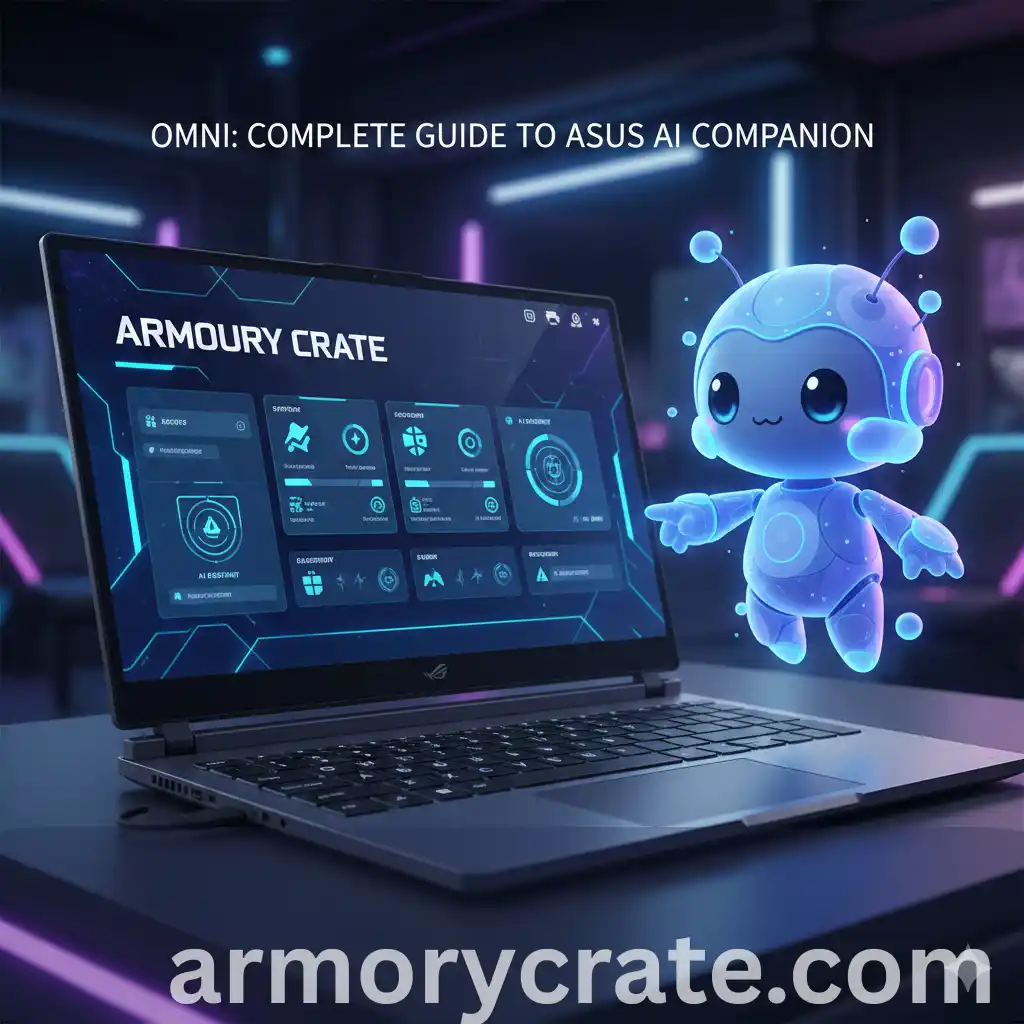
Have you ever wanted your PC to feel more alive? That’s what the Armoury Crate Virtual Assistant (OMNI) does. Originally introduced as the Armoury Crate Virtual Pet, ASUS has now transformed OMNI into the ROG Virtual Assistant. It’s a small digital pet that lives on your screen and reacts to what you do.
This virtual assistant is not just for looks. It moves, makes faces, shows emotions, and even grows over time. The more you use your computer, the more your pet levels up and does new things.
It doesn’t help with performance, but it adds fun to your setup. It can cheer you up during long gaming or work sessions. Sometimes, it even gives cute little reminders.
OMNI recently got smarter—a powerful AI companion that blends fun animations with productivity tools. It now helps with tasks like reading PDFs, transcribing audio, and even responding to voice commands. These features make it useful for more than just fun on your desktop.
In this post, we’ll look at what this virtual assistant can do, how to unlock it, feed it, why many ASUS users enjoy having it around, and what it is actually for!
What is the Armoury Crate Virtual Assistant?
The Armoury Crate Virtual Assistant, also known as OMNI, is a fun little companion built into the Armoury Crate software by ASUS. It shows up as a cute animated character on your desktop and reacts to what you’re doing—like gaming, charging your laptop, or running apps. It’s there to make your PC feel more alive and interactive.
OMNI is not just for fun. It now works as a smart AI assistant inside Armoury Crate. It can summarize documents, transcribe audio, and help you move around your system more easily. You can also chat with OMNI using standard AI responses or its unique personality mode, making everyday tasks faster and more interactive. You can find OMNI in the main dashboard of Armoury Crate if your device supports it.
It’s a small feature, but it adds a unique touch to your everyday gaming or work setup.

Features and Functionalities
Here’s what I found after using the Armoury Crate Virtual Assistant myself:
Interactive Reactions
OMNI is like a little buddy on your screen that reacts to what you do. If you open a game, it gets super excited and starts jumping or smiling. When your PC is working hard, OMNI looks tired or stressed, which is really funny to watch. If everything is calm, it just chills and relaxes. These cute reactions make your computer feel more alive and playful. It’s not just a decoration—it feels like a pet that understands what’s going on and shares the moment with you.
System Monitoring
OMNI is not just cute, it’s smart too. While you use your PC, OMNI quietly keeps an eye on your system. If your CPU is getting hot or your RAM is filling up, OMNI reacts with little animations. It might look dizzy when your system is under heavy load or chill and relaxed when everything is running fine. This makes system monitoring feel fun instead of boring. You don’t have to stare at numbers, just watch OMNI’s mood to know how your PC is doing!
Pet Leveling
OMNI is your smart companion on your system. It learns and earns experience as you interact with your system. It levels up over time. The more time you spend over the system, the more it grows and comes with new expressions, animations, and sometimes even surprises. So, the more you use your PC, the happier and more advanced your virtual buddy becomes!
Mini-Games and Fun Animations
OMNI isn’t just for show—it also brings playful moments to your desktop. In its latest versions, some mini-games like Slot Machine, Shoot’em Up, Whack‑A‑Mole, etc. are added. You can take a break and play these games without opening any other app. It has built in animations which change depending on your activity. It even surprises you with random actions that make you smile. These tiny moments of fun break the routine.
Voice Assistant and AI Tools (New Feature)
The new Voice Assistant and AI tools in Armoury Crate add even more convenience to OMNI. You can now talk to OMNI using simple voice commands. For example, say “Boost performance” and it can switch your system to Turbo Mode. You can also ask OMNI to summarize files or transcribe voice memos. These tools can be found in the OMNI settings under “AI Features” if your hardware supports them. The AI also learns your habits over time and gives suggestions. OMNI is now a true assistant:
- Librarian Tab: Import TXT, PDF, DOC, PPT files, summarize content, and ask Q&A.
- Transcription Tab: Convert English audio into text and summaries.
- Chat Navigation: Ask OMNI to guide you through settings, check grammar, or configure lighting effects.
- Offline AI: Powered by Meta Llama 3, runs locally for privacy. Advanced models (Llama 3.3 70B) available on select devices.
Customization Options
Acts of OMNI keep you aware and smiley. You can further customize as per your choice. You can change how it looks, how it sounds, and even how it behaves on your screen. Want your pet to wear glasses, a hat, or a cool outfit? You can do that. You can also choose where it appears on your desktop and how it moves. These little touches make OMNI feel more personal and fun, like a digital buddy that fits your style.
Installation and Setup
The installation and setup of Armoury Crate virtual assistant is simple. You need to follow the simple steps and you will have your best companion on your PC. Before doing that, check the minimum system requirements which are as under.
System Requirements
Feature | Armoury Crate Lite |
|---|---|
Operating System | Windows 10 (64-bit) or Windows 11 |
Armoury Crate Version | 5.0 or higher |
Device Type | ASUS ROG desktops or laptops with OMNI support |
RAM | At least 8 GB |
Step 1: Check for Armoury Crate
First thing first, make sure Armoury Crate is installed on Your PC. Most ASUS systems come with a pre-installed Armoury Crate. If you are using a third-party device, you need to download Armoury Crate first. You may download an armoury crate with just a single click.
Note: To access OMNI’s full AI capabilities, make sure your device supports Ryzen AI or similar hardware acceleration, and your Virtual Assistant plugin is updated to version 3.0 or above.
Step 2: Open Armoury Crate and Update It
OMNI is the latest development by ASUS. It requires the latest version(5.0 or above) of Armoury Crate. If you are using an older version, Open the app, go to the Update Center, and click “Check for Updates.” Install any available updates to make sure you have all the latest features.
Step 3: Go to the “OMNI” Section
After having updated Armoury Crate, look for the “OMNI” tab in the sidebar or home screen. Click on it to open the Virtual Assistant setup. If it’s your first time, OMNI will greet you with a short intro.
Step 4: Set Up Your Virtual Assistant
After opening the OMNI section, you’ll see options to personalize your virtual assistant. You can give it a name, choose how it appears on your desktop, and adjust its size or position.
Step 5:Wait for OMNI to Load and Start Interacting
When the setup is completed, your smart companion will load and start interacting in a very smart way. First, it will assess what’s going on, then will guide you animated interaction. You can further explore its features.
Step 6: Enable Extra Features (Optional)
If you want to make OMNI even more fun, head into its settings and explore the extra features. You can turn on voice reactions, enable mini-games, or let it show system stats like CPU usage or network activity. Also try out file summarization and audio transcription under AI Tools – great for students, creators, or multitaskers.
How to Disable the Virtual Assistant?
If you ever want to turn off the Armoury Crate Virtual Assistant (OMNI), it only takes a few clicks:
- Open the ASUS Armoury Crate app on your ASUS device.
- Go to the OMNI section from the sidebar.
- Look for the toggle or settings option labeled Enable Virtual Assistant.
- Switch it off to disable OMNI.
Once turned off, the virtual assistant will disappear from your screen, and you can always turn it back on anytime from the same place.
Final Verdict
If you enjoy adding a touch of fun to your gaming or work setup, the Armoury Crate Virtual Assistant is a great feature to explore. OMNI brings a friendly and playful vibe to your screen by reacting to what you do and showing fun animations. It’s like having a tiny, cheerful sidekick watching your every move. No matter if you’re gaming, editing, or just browsing, it adds a fun touch to your screen. And when you want things calm, just turn it off with one click. With AI-powered tools baked in, it’s now both a desktop companion and a smart assistant rolled into one.