Aura Creator Inside Armoury Crate
Not satisfied with the preset lightening modes inside aura sync? Want to take full control and customize the look of your PC?
Aura creator puts every single LED under your command. From a calm soft glow to an eye-catching light show—you’r in full control.
It is an advanced tool built inside armoury crate that allows you to build designs as per your own choice. While aura sync gives some preset lighting modes like Static, Rainbow, Breathing, etc., Aura Creator gives you a completely different level of control: a timeline-based editor where you can build layered, animated, frame-by-frame lighting effects from scratch.
This guide will cover everything you need to know about aura creator, from launching for the first time to building complex lighting profiles.
How to Open Aura Creator from Armoury Crate
Aura creator resides inside armoury crate. Follow these simple steps to open aura creator
- Open Armoury Crate
- In the left sidebar, click Aura Sync
- Go to the Aura Effects tab
- Click the Aura Creator button to launch it
When you launch for the first time, aura creator will automatically scan for devices attached with your PC. Compatible devices will be displayed in the device panel.
Note: If Aura Creator isn’t appearing, it may not be installed. In Armoury Crate Version 6, it’s part of the Playground module. Go to Settings → Update Center and make sure the Playground module is installed.
The Aura Creator Interface
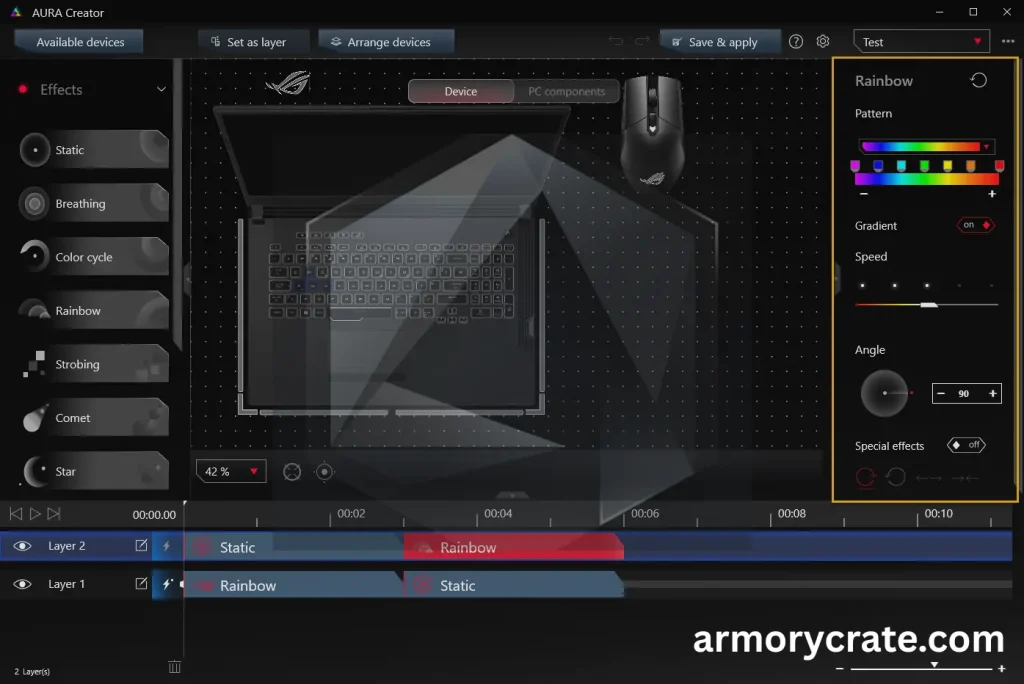
Aura creator interface is quite handy. It has four main sections.
A — Device Arrangement Panel (left/top) This shows the visual presentation of the compatible devices i.e keyboard, mouse, motherboard, etc. Here you can select the devices to include in a specific profile, arrange them to match your real world desk layout. You can select specific lighting zones within each device.
B — Layer (left panel) This is the core of Aura Creator.It is meant for managing layer effects which allows complex multi-layered effects. Here, you can reorder, rename all the created layers. It shows controls to add a new layer or delete an existing one. It shows preview effects of any layer.
C—Timeline Editing (Bottom Panel)
Timeline is a linear track where lighting effects (bricks) are applied. Here, you can drag lighting effects to the timeline, drag the edges to adjust speed and duration. The effects can be synced with other supporting devices.
D—Lighting Effects & Properties (Right/Left Panels)
This section manages how the selected lighting effect looks and works. A list of preset lighting effects (eg, rainbow, static, breathing, color cycle) is available. You can simply select and drag any of the bricks and apply on timeline.
Properties further allows you to fine tune each effect individually.
Color: Pick your own colors.
Brightness: Make the lights brighter or dimmer.
Speed: Decide how fast the effect moves.
Angle/Direction: Change the direction of the lighting movement.
All the Lighting Effects Available in Aura Creator
Here’s a breakdown of every effect type in the effects pool and what each one does:
Static: It is solid, non-animated color. Best for clean, minimal aesthetics.
Breathing: Fades in and out slowly. Great for ambient or focus setups.
Color Cycle: Smoothly transitions through a full color spectrum.
Rainbow: A multi-color wave that moves across your devices.
Strobing: Rapid flashing effect. Dramatic, not for everyone.
Comet: It is a light trail that chases across your device zones.
Starry Night: Random LEDs flicker like stars. Very popular for non-gaming setups.
Quick Flash: It is rapid burst of color on demand or triggered.
Reactive: Lights respond to keypresses or mouse clicks. Per-key RGB keyboards only.
Probing: A wave effect that moves across your device.
Laser:A sharp, fast-moving beam of light across zones.
Ripple — Light radiates outward from a central point.
Music (Sync with Music): Converts live audio output into dynamic lighting changes in real time. The LEDs pulse, shift, or flash in response to the rhythm and intensity of whatever is playing.
Adaptive Color (Sync with Adaptive Color): Captures the dominant or average color from a region of your screen and displays it on your devices. So if a game has a red explosion, your lighting shifts red. If the sky in a game goes blue, your lights follow.
How Music Sync Works in Aura Creator
The Music effect deserves its own explanation because it’s one of the most impressive features and also the one most users set up incorrectly.
To add it:
- Select the lighting zones you want to react to music
- Create a new layer for those zones
- Drag the Music effect block from the effects pool onto the layer track
- Adjust sensitivity and effect style in the right properties panel
- Click Play or Save & Apply
Important: The Music effect reacts to your system’s audio output, not a microphone. So your music, game audio, or video must be playing through your output device (speakers or headphones) for the effect to work.
If the effect isn’t responding, try adjusting the volume directly from your media player rather than the Windows system volume slider, as Aura Creator reads the audio signal differently depending on the playback device.
How Adaptive Color Works in Aura Creator
Adaptive Color is Aura Creator’s screen-reactive lighting mode. It captures a color from a selected region of your display and mirrors it on your LEDs in real time.
To set it up:
- Select lighting zones and create a new layer
- Drag the Adaptive Color effect onto the timeline track
- In the properties panel, load a screenshot of your current display
- Drag to select the screen region you want Aura Creator to sample from
- Choose whether to display the average color or the most prominent color from that region
- Click Save to confirm the detection region
- Apply the profile
Sharing, Importing, and Exporting Profiles
With aura creator sharing, importing and exporting profiles is quite simple and easy.
To export a profile: Open your profile in Aura Creator, go to the Lighting Profile menu, and select Export. This creates a shareable file.
To import a profile: Go to Lighting Profile → Import and load the file. The profile will appear in your library and be available in Armoury Crate.
Common Aura Creator Problems & Quick Fixes
“I can’t find my device in Aura Creator” Make sure the device is detected in Armoury Crate first.Connect device preferably via USB. If it appears in Armoury Crate but not in Aura Creator, restart both apps. If it’s a new device, check that it’s Aura Sync compatible.
“Aura Creator shows an Error screen” This is usually a Windows compatibility issue. Aura Creator requires Windows 10 (Creators Update / 1903 or later) or Windows 11. Also verify that Aura Service and ROG Live Service are running in the background.
“My custom profile disappears after a Windows update” This is a known issue. Export your profiles regularly as a backup. After a major Windows update, reinstall the Playground module via Armoury Crate’s Update Center.
“Music effect isn’t responding” Confirm audio is playing through your output device (not just headphone monitoring). Adjust sensitivity in the properties panel. Use your media player’s volume instead of Windows system volume.
“Adaptive Color shows black” Your detection region is sampling from a screen that’s no longer connected, or the region was set when a different window was in focus. Re-set the detection region.
Summary
Aura Creator is the bridge between Armoury Crate’s convenient preset control and truly custom RGB lighting. Where Aura Sync lets you pick a vibe in seconds, Aura Creator lets you build exactly what you imagined — down to individual zones, timing, and behavior.