Aura Sync – Complete Guide for ASUS Armoury Crate Users
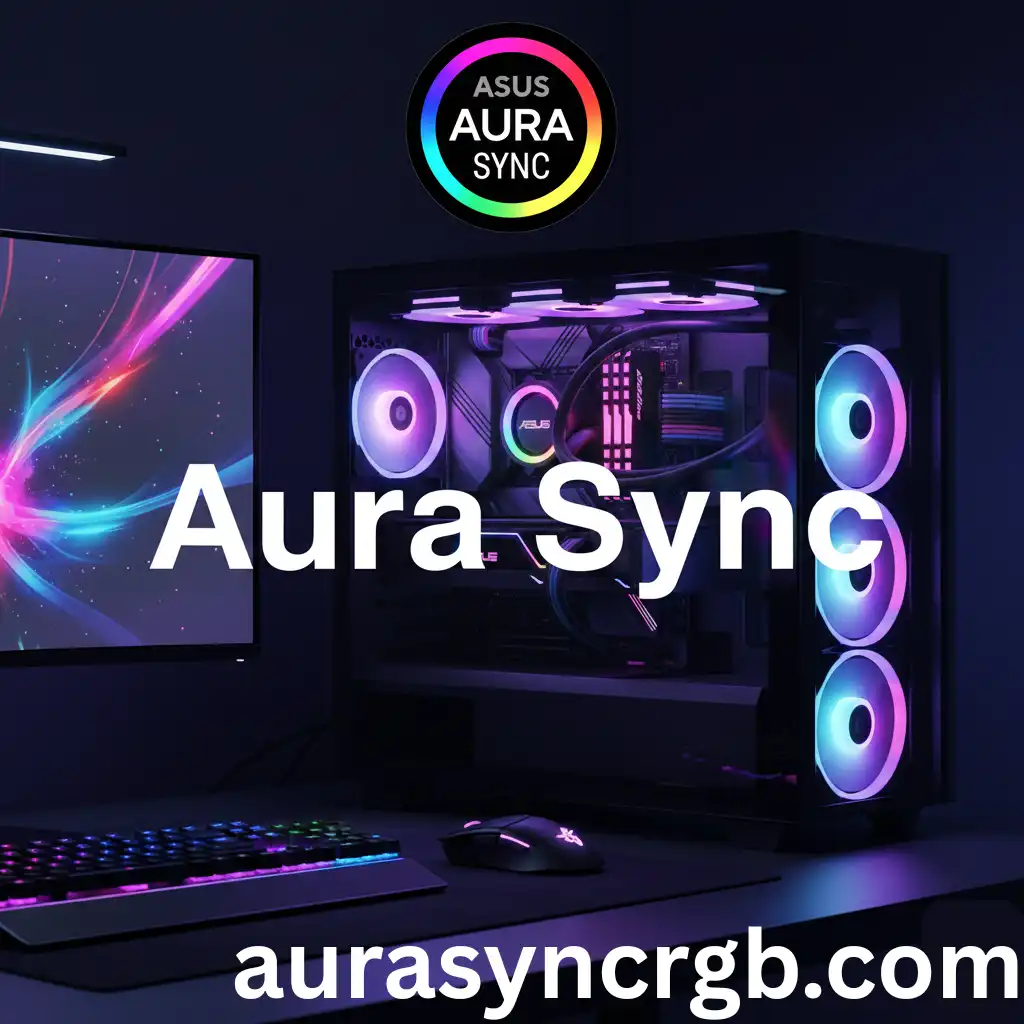
Many ASUS users install Armoury Crate but never fully use its real power. They open it to check drivers or device info, then close it, not knowing that this one software can control almost their entire PC experience.
Armoury Crate is made to be the main control center for ASUS systems, from performance modes to device settings and system updates. But when RGB lights from different parts still look messy, users feel something is missing, even though they already have the right software installed.
That missing piece is Aura Sync inside Armoury Crate. It is the lighting system that lives inside Armoury Crate and connects all your RGB devices under one screen. Instead of lights working separately, Aura Sync allows your motherboard, graphics card, keyboard, mouse, and other RGB parts to follow one lighting style.
When Aura Sync is used through Armoury Crate, your whole setup starts to look organized, smooth, and premium. It is not just about colors, infact it is about turning Armoury Crate into a full visual control center for your PC.
What is Aura Sync?
ASUS Aura Sync is the RGB lighting system that works inside Armoury Crate to control the lights on ASUS and compatible devices. It allows you to change colors, effects, and lighting styles for the motherboard, graphics card, RAM, keyboard, mouse, and other RGB parts from one place. This makes your PC setup look clean, organized, and customized, all through the Aura Sync section inside Armoury Crate.
Aura Sync vs Aura Creator
While Aura Sync and Aura Creator are both part of Armoury Crate, they serve slightly different purposes, and knowing the difference helps you use them effectively.
Aura Sync is designed for simple, ready-to-use RGB lighting. It allows you to apply preset colors and effects across all your ASUS devices quickly.
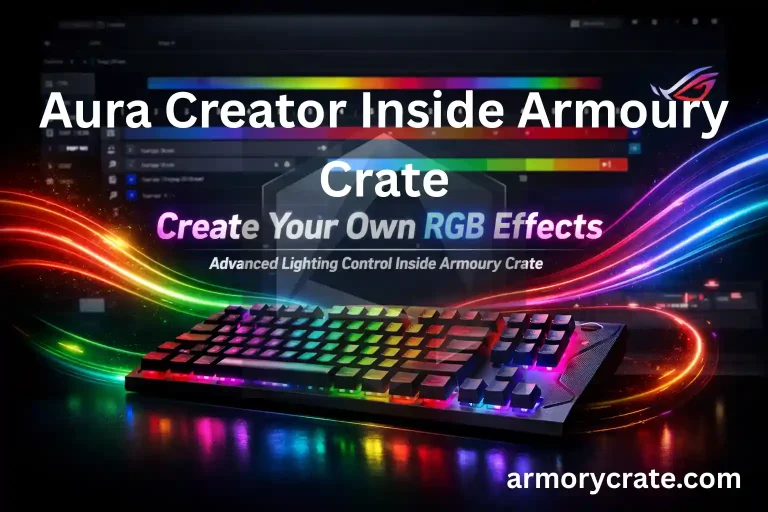
Aura Creator, on the other hand, is for advanced users who want full control. It allows you to design your own effects, combine layers, adjust speed and brightness, and create unique animations for each device. Aura Creator works inside Armoury Crate, and its custom effects can be applied through Aura Sync so that all your devices follow the new design.
In short, Aura Sync is simple and fast for syncing colors, while Aura Creator gives you full creative control to make your PC lighting unique.
Aura Sync and Armoury Crate
Armoury Crate and Aura Sync are not two separate systems that work alone. They are designed to work as one complete control system for ASUS users. Armoury Crate acts like the main control room, while Aura Sync works inside it to manage all RGB lighting.
When both are used together, you can control how your PC runs and how it looks from one place. This makes setup easier and gives better control without installing many different apps.
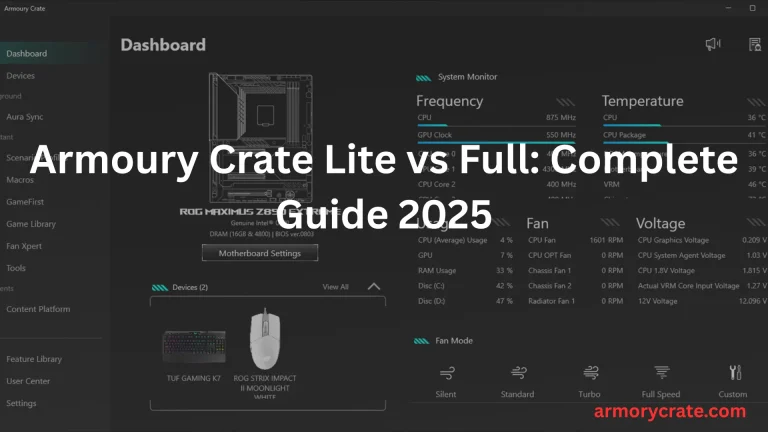
In Armoury crate 6, more control is given to user. Now, you can choose or skip any module to install in armoury crate. Like, you can choose aura sync, game library, or AI noise cancellation, etc. to install on you PC or skip.
Armoury Crate as the Main Control Center
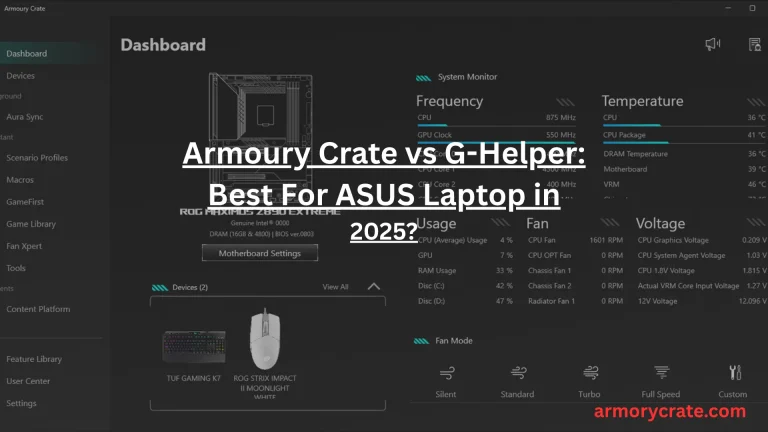
Armoury Crate is where everything starts. It detects your ASUS hardware and connected devices, shows system information, and gives access to performance modes, fan settings, driver updates, and tools.
It also acts as the main platform where lighting features are loaded. Without this, you would have to manage many settings separately, which can be confusing and time-consuming.
Aura Sync Inside Armoury Crate for RGB Control
Aura Sync works inside Armoury Crate as the RGB lighting system. Once your devices are detected, it allows you to change colors, choose lighting effects, and sync all lights together. Instead of setting each device one by one, Aura Sync applies one lighting style across your whole setup. This makes your PC look clean, matched, and more professional.
One Dashboard for Performance and Lighting
When Armoury Crate and Aura Sync work together, you get one simple dashboard for both system control and RGB lighting. You can switch performance modes for gaming and, at the same time, set matching RGB effects for your setup. This connection saves time, reduces software clutter, and gives you full control of both power and appearance in one place.
How to Enable Aura Sync in Armoury Crate?
Enabling Aura Sync in Armoury Crate is simple, but many users miss a few small steps that stop their RGB lights from syncing properly. Once Aura Sync is turned on the right way, all your supported ASUS and RGB devices can follow one lighting style. This makes your setup look clean and fully connected instead of random.
Step 1: Install or Update Armoury Crate
First, you should make sure the Armoury Crate is installed on your PC. If you already have it, open it and check for updates. An updated version helps Armoury Crate to detect your devices correctly and load Aura Sync without errors. Old versions can cause missing devices or broken lighting control.
Step 2: Open Armoury Crate and Go to Devices
Now, open the Armoury Crate and go to the Devices or Dashboard section. Here, Armoury Crate will scan and show your connected ASUS hardware, like the motherboard, GPU, keyboard, mouse, and other supported devices. If a device does not appear, then it may not support Aura Sync or may need a driver update.
Step 3: Open the Aura Sync Section
Inside the Armoury Crate, find and click on the Aura Sync tab. This is where all RGB lighting controls are located. Once you open it, you will see a list of detected RGB devices that can be synced together.
Step 4: Select Devices to Sync
Choose the devices you want to sync. You can select your motherboard, graphics card, RAM, keyboard, mouse, and other RGB parts. Selecting all supported devices allows Aura Sync to apply one lighting style across your whole setup.
Step 5: Choose a Lighting Effect and Color
After selecting devices, pick a lighting effect such as static, breathing, color cycle, or other available effects. Then choose your preferred colors. Aura Sync will apply the same effect and color to all selected devices, which makes your setup look matched and organized.
Step 6: Save and Apply Settings
Finally, click Apply or save to confirm your settings. Your RGB lights should now sync across all selected devices. If something does not change, then restart Armoury Crate or your PC to refresh the connection.
Advanced Aura Sync Features
Aura Sync is not just about basic colors and effects. It also includes advanced features that allow you to fully customize your PC lighting, which makes it react to music or games, and even sync with third-party devices. These tools give you more control, creativity, and flexibility, so your setup looks unique and professional.
Full Spectrum Control
Full Spectrum Control allows you to choose from millions of colors for your RGB devices. You can pick any shade you like and apply it to your motherboard, GPU, RAM, keyboard, mouse, and RGB strips. This level of control helps you to match your PC lighting perfectly with your mood, room theme, or gaming setup, which makes your entire system look unified and stylish.
Music Reactive
The Music Reactive feature makes your RGB lights react to sound. Whether you are playing games, watching movies, or listening to music, your lights can pulse, flash, or change colors based on the audio. This adds energy and immersion to your setup and makes your PC feel more alive while you enjoy your content.
Third-Party Support
Aura Sync also supports third-party devices that are Aura-compatible. This means you can include RGB peripherals from other brands, like fans, keyboards, and LED strips, and sync them with your ASUS hardware. All lights can follow the same style and effects, which makes your entire setup look coordinated without needing multiple apps.
Aura Wallpaper
Aura Wallpaper allows your desktop background to match your RGB lighting. With Aura Wallpaper, the colors on your screen can sync with your Aura Sync effects in real time. This creates a full, impressive experience where your PC lighting and wallpaper work together to make your setup look more vibrant and connected.
Aura Sync Lighting Effects
Aura Sync gives users many lighting effects to control how their PC setup looks. These effects help to change the style, mood, and feel of your RGB devices with just a few clicks.
Static Effect
The Static effect shows one solid color on all selected devices. This is best for those users who want a clean and simple look. Many people use static white, red, or blue to keep their setup calm and professional.
Breathing Effect
Breathing makes the lights slowly fade in and fade out. This creates a soft and relaxing glow. It is a good choice for those users who want a smooth look without fast or flashy movement.
Color Cycle and Rainbow Effects
Color Cycle changes colors slowly over time, while Rainbow shows multiple colors flowing across devices. These effects are popular for those users who like bright and colorful setups. They make the PC look lively and fun.
Reactive and Smart Effects
Some Aura Sync setups support reactive or smart effects. These effects can change colors based on sound, system activity, or in-game actions. This adds an extra layer of interaction and makes the lighting feel more connected to what is happening on your PC.
Best Aura Sync Settings for Gamers
Gamers often want their RGB lighting to look cool but not distract them during gameplay. The right Aura Sync settings can improve focus and still keep the setup stylish.
Setting | Recommended Option | Description / Why It Works |
|---|---|---|
Effect | Static or Breathing | Static gives a clean look, Breathing adds soft movement without distraction. |
Primary Color | Red, Blue, or White | These colors are easy on the eyes and look professional for gaming setups. |
Secondary Color | None or same as primary | Keeps lighting uniform and reduces visual distraction. |
Brightness | 40-60% | Medium brightness provides visibility without straining your eyes during long sessions. |
Speed (if Breathing or Color Cycle) | Slow | Slow lighting changes reduce distraction and create a smooth effect. |
Sync Devices | Motherboard, GPU, RAM, Keyboard, Mouse | Syncing all devices makes the setup look uniform and organized. |
Game-Based Reactive Lighting | Optional / Only if supported | Adds immersion for games without affecting focus, and can be turned off if distracting. |
Match Performance Mode | Optional | Use red for Performance mode, blue for Silent mode |
Best Aura Sync Settings for Creators & Streamers
The use of soft colors and smooth effects makes creators’ and streamers’ setups look professional on camera and comfortable for long sessions.
Setting | Recommended Option | Description / Why It Works |
|---|---|---|
Effect | Breathing / Color Cycle | Smooth and appealing for streaming or editing. |
Primary Color | Soft White / Blue / Purple | Gentle colors that look good on camera. |
Secondary Color | Light Pink / Light Blue | Adds depth without distraction. |
Brightness | 30-50% | Prevents glare and keeps visuals clear. |
Speed (if Breathing or Color Cycle) | Slow / Medium | Smooth transitions look professional. |
Sync Devices | Motherboard, GPU, RAM, Keyboard, Mouse | Uniform lighting makes the setup look polished. |
Reactive Effects | Optional | Adds subtle flair, but avoid fast flashing |
How to Update Aura Sync
The updation of Aura Sync is important to make sure your RGB lights work properly and that new features are available. Here I will tell you how to update Aura Sync step by step.
Step 1: Open Armoury Crate
First, you should open the Armoury Crate on your PC. Check that your PC is connected to the internet because updates need an active connection to download the latest files.
Step 2: Check for Updates
Go to the Settings or About section in Armoury Crate. Then, go to Check for Updates or Update option. Click it to see if a new version of Aura Sync or Armoury Crate is available.
Step 3: Download and Install Updates
If an update is available, then click Download and wait for the process to complete. Once downloaded, click Install. Armoury Crate may ask you to restart your PC to apply the update.
Step 4: Verify the Update
After restarting, open Armoury Crate again and check the Aura Sync version in the About section. If the version matches the latest release, then it is now updated and ready to use.
Is Aura Sync Free ?
Yes, Aura Sync is completely free when you use it through Armoury Crate. You do not need to buy any extra software to control the RGB lights on your ASUS devices. Once Armoury Crate is installed on your PC, Aura Sync is included as part of it.
This means you can manage all your RGB lighting for your motherboard, GPU, keyboard, mouse, and other compatible devices without paying anything. You only need to check that your devices support Aura Sync and that Armoury Crate is updated to the latest version.
Final Words
Aura Sync inside Armoury Crate makes managing your PC’s RGB lights easy and fun. It keeps all your ASUS devices synced, which allows you to choose colors and effects, and makes your setup look clean, stylish, and professional without any extra software. If you are gaming, streaming, or just using your PC, then Aura Sync helps your setup to feel complete and connected.